Adding an Item
The Add option allows users to add an item reported as lost or found but yet to be claimed.
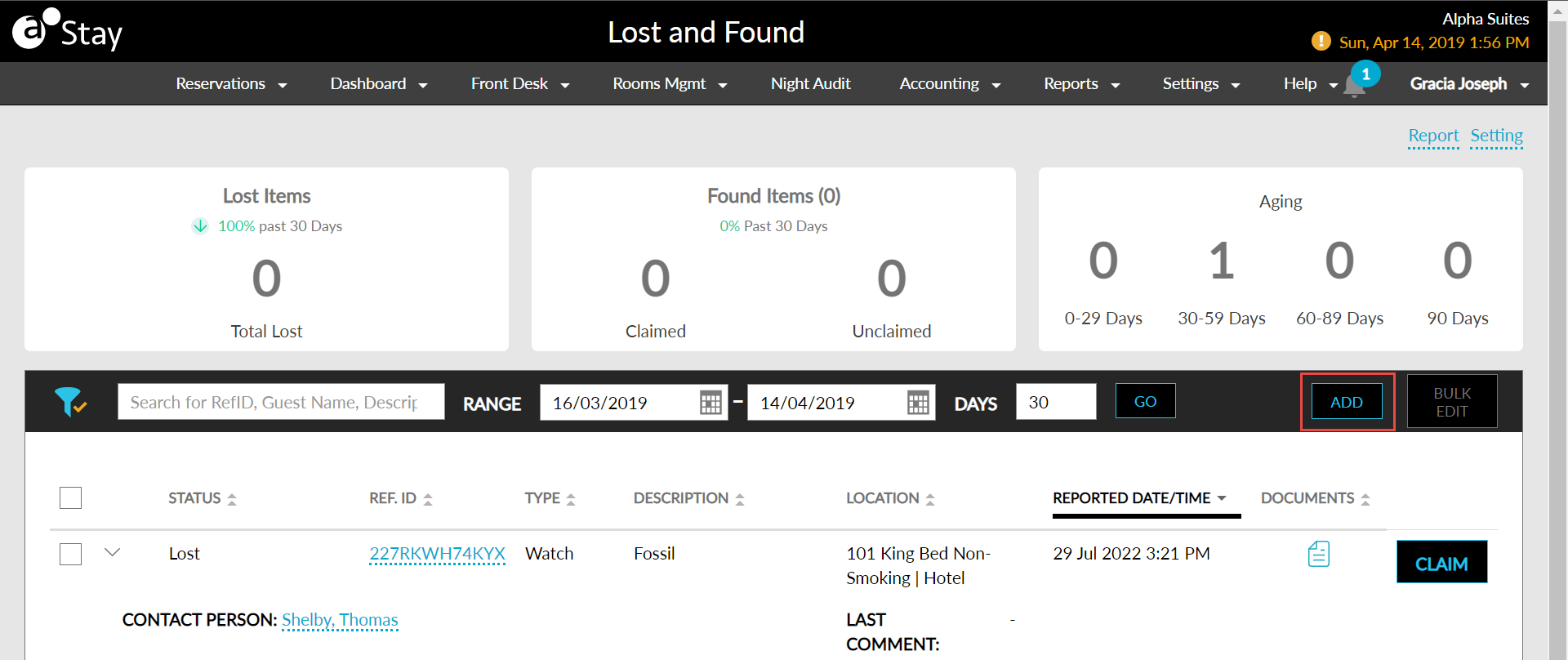
Clicking on the Add button opens the Create an Item pop-up screen where users can create records for a lost or a found and unclaimed item.
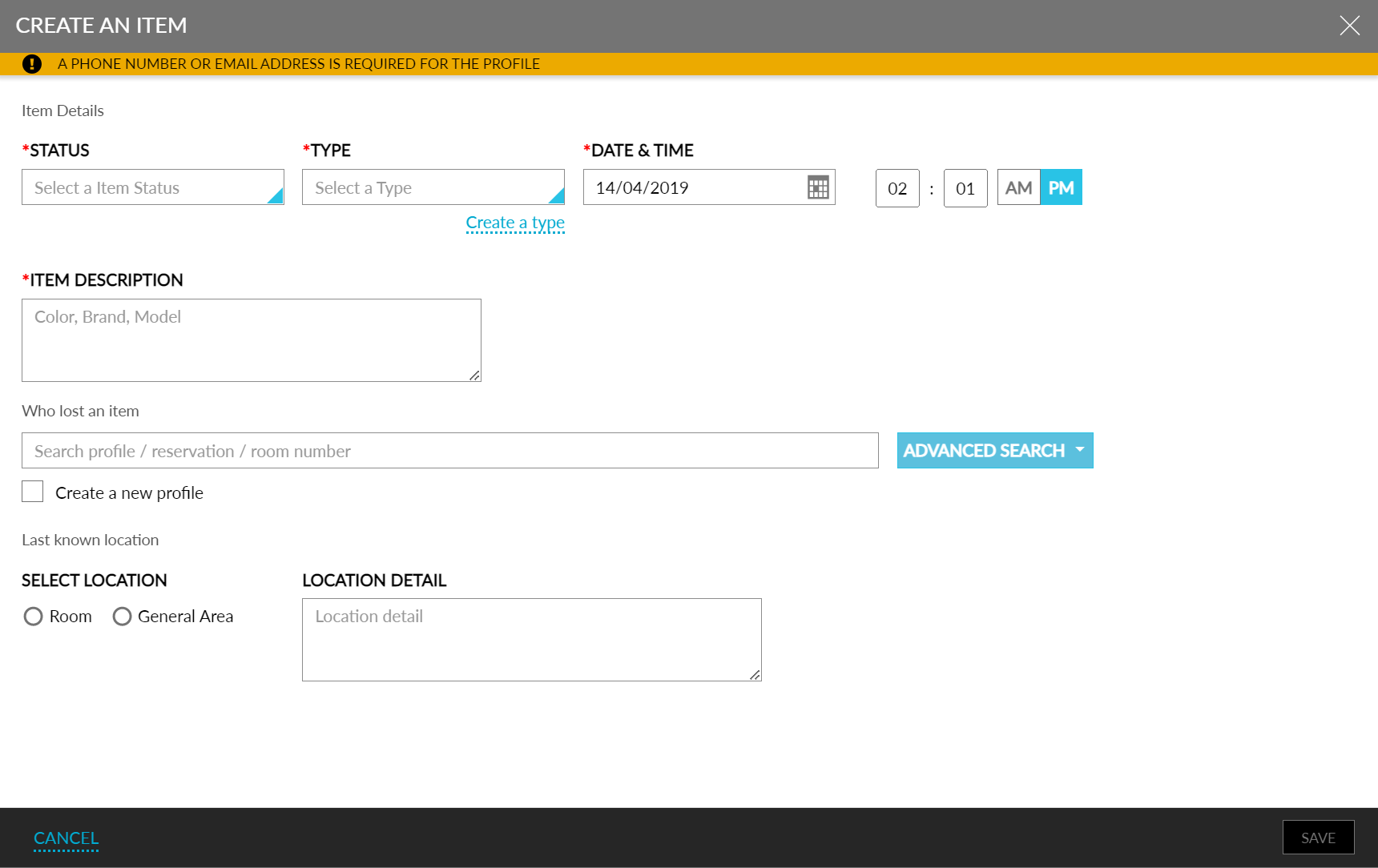
Adding a Lost Item
Perform the following steps to add an item reported as lost:
Navigate to Rooms Mgmt ➜ Lost and Found.
Click the Add button. The Create an Item pop-up screen is displayed.

Refer to the following table and fill in the fields:
|
Field |
Description |
|---|---|
|
Status |
Select Lost. |
|
Type |
Select the type of item from the drop-down list. |
|
Create a type |
Click to open the Add pop-up screen to create a new type of item. |
|
Active |
Enable to have the item type as active. |
|
Type |
Enter the name of the item. |
|
Code |
Enter the code to refer to the item. Click Save to create the new type of item. |
|
Date & Time |
Select the date from the calendar and set the time when reported. |
|
Item Description |
Enter a relevant description of the item. For example, color, brand, or model. |
|
Who lost an item |
Search and select the guest’s profile in the search field. Users can perform an advanced search by clicking the Advanced Search button. |
|
Create a new profile |
Select to create a new guest profile. |
|
Last Name |
Last name of the guest. |
|
First Name |
First name of the guest. |
|
|
Email ID of the guest. |
|
Phone Number |
Phone number of the guest. |
|
Active |
Enable to keep the profile active. |
|
Archived |
Enable to archive the profile. |
|
Preferred Contact Method |
Choose one among the following options to contact the guest:
|
|
Preferred Return Method |
Choose one among the following options on how the item must be returned:
|
|
Select Location |
Select between Room and General Area and enter the relevant details of where the item was lost. |
|
Location Details |
Description of the possible whereabouts of the lost item. |
Click Save to create the lost item entry.
Adding a Found but Unclaimed Item
Perform the following steps to add an item found and is yet to be claimed:
Navigate to Rooms Mgmt ➜ Lost and Found.
Click the Add button. The Create an Item pop-up screen is displayed.
Refer to the following table and fill in the fields:
|
Field |
Description |
|---|---|
|
Status |
Select Found-Unclaimed. |
|
Type |
Select the type of item from the drop-down list. |
|
Create a type |
Click to open the Add pop-up screen to create a new type of item. |
|
Active |
Enable to have the item type as active. |
|
Type |
Enter the name of the item. |
|
Code |
Enter the code to refer to the item. Click Save to create the new type of item. |
|
Found By |
Enter the name of the person who found the item, which in general should be an employee. |
|
Date & Time |
Select the date from the calendar and set the time when reported. |
|
Item Description |
Enter a relevant description of the item. For example, color, brand, or model. |
|
Storage Location |
Select a location from the drop-down list where the item is stored. |
|
Tag Number |
Enter the tag number of the stored item. |
|
Select Location |
Select between Room and General Area and enter the relevant details of where the item was found. |
|
Location Details |
Description of the whereabouts of the found item. |
Click Save to create the found-unclaimed item entry.